

Introduction
This guide explains show users how to access and navigate around the person summary and care network screens. It is suitable for anyone who uses the Shared Care Record, please have the relevant individual’s record open before following these steps.
(Please note that the record shown is a test patient and does not contain any personal identifiable information.)
Step-by-step instructions
When you select either of the person summary tabs, you will see dashboard cards with care information about the person.
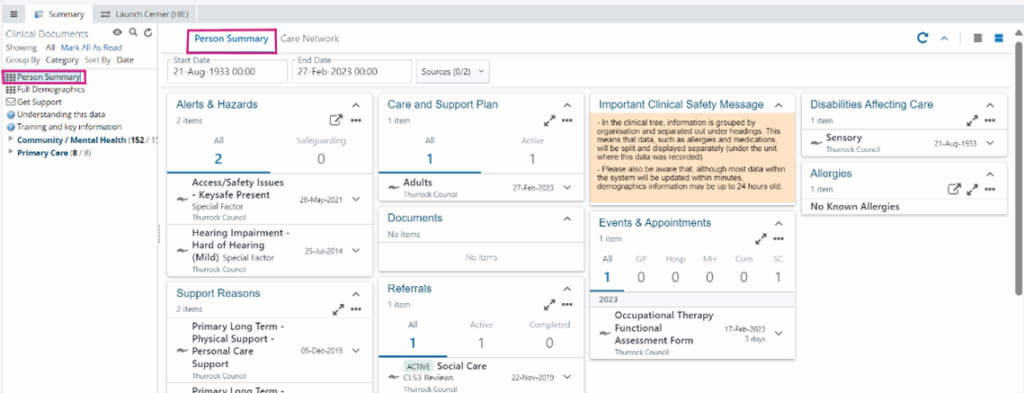
When you select the care network tab, you will see dashboard cards with information about people involved in the person’s care.
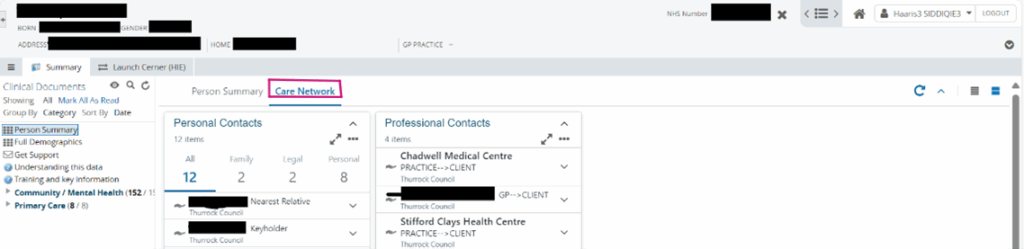
Please read the important clinical safety message displayed in the panel.

You can also filter information you see on the screen by using the calendar.

Person summary dashboard cards
Allergies card
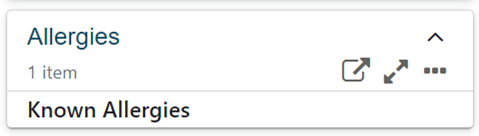
The only allergies data in the Shared Care Record comes from the person’s GP record. This is displayed on the allergies card in the person summary. If a person has allergies recorded, this will display as ‘Known Allergies’. To see detailed information, click on the card.
Detailed allergies and adverse reactions will be displayed in a pop-up window like the below.
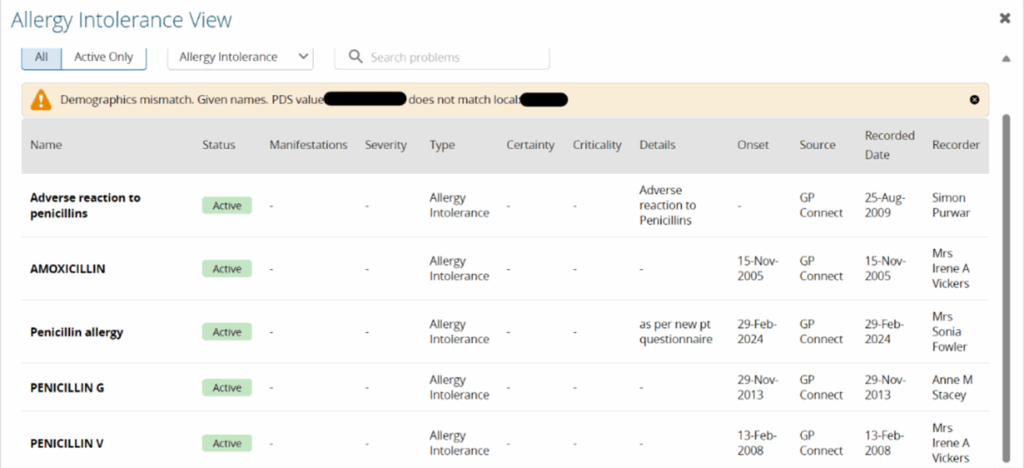
As is standard practice, please verify this information with the person you are caring for.
Alerts and hazards card
This card highlights critical alerts and hazards that may impact the person’s care. These are split into two categories:
- Risks: specific dangers or issues, such as physical or environmental hazards, that may require immediate attention.
- Special factors: conditions or considerations that could influence care, such as access challenges or sensory impairments.

Support reasons card
Displays information about the person’s primary and secondary support needs, such as physical or personal care support.

Care and support plan card
Indicates whether a care or support plan is in place and its status (active or inactive). While full plans cannot be viewed directly, users can see key details like start and review dates, providing insight into ongoing support arrangements.
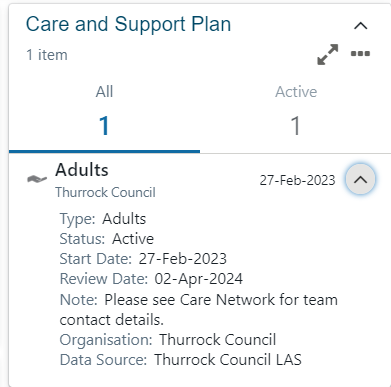
Southend City Council adult social care data: Interim and respite care plans, which are temporary and should display an end date, are not currently included due to technical limitations.
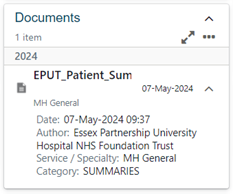
Documents card
Shows documents in chronological order, with key information such as date, author, and category. Click on the summary information to view the full document. Please also check the Clinical Document Viewer on the left-hand side of the screen for additional documents and information.
Referrals card
Displays referral information, indicating whether the referral is active or completed. Key details include the service referred to, referral date, and status. This helps users track ongoing or past referrals.
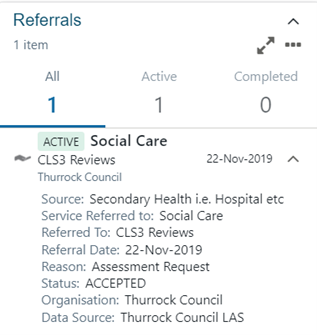
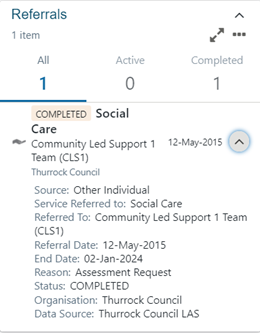
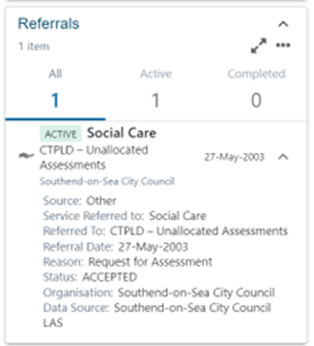
Southend City Council adult social care data: To identify the correct social care team the person has been referred to, look at the name stated first in the ‘service referred to’ field in the description. The wording after the hyphen defines the social care system work tray.
Events and appointments card
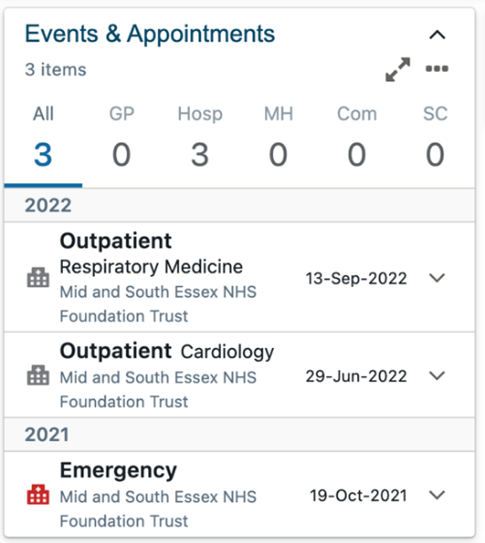
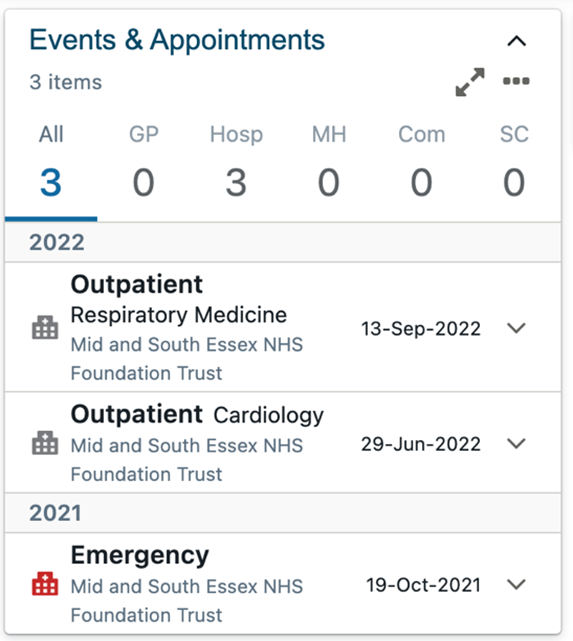
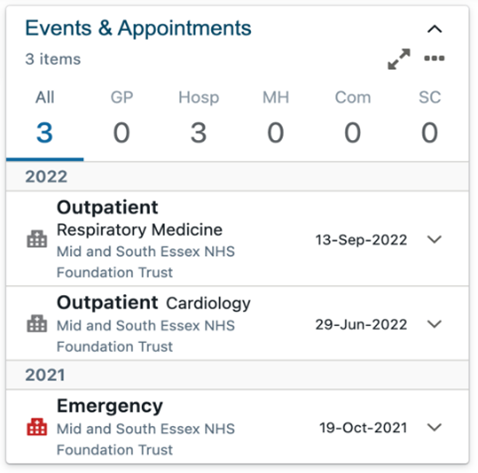
Displays a list of events and appointments in chronological order. This can be filtered by sector by clicking on the sector name or number (e.g., GP, hospital).
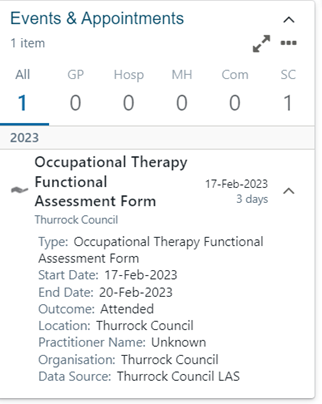
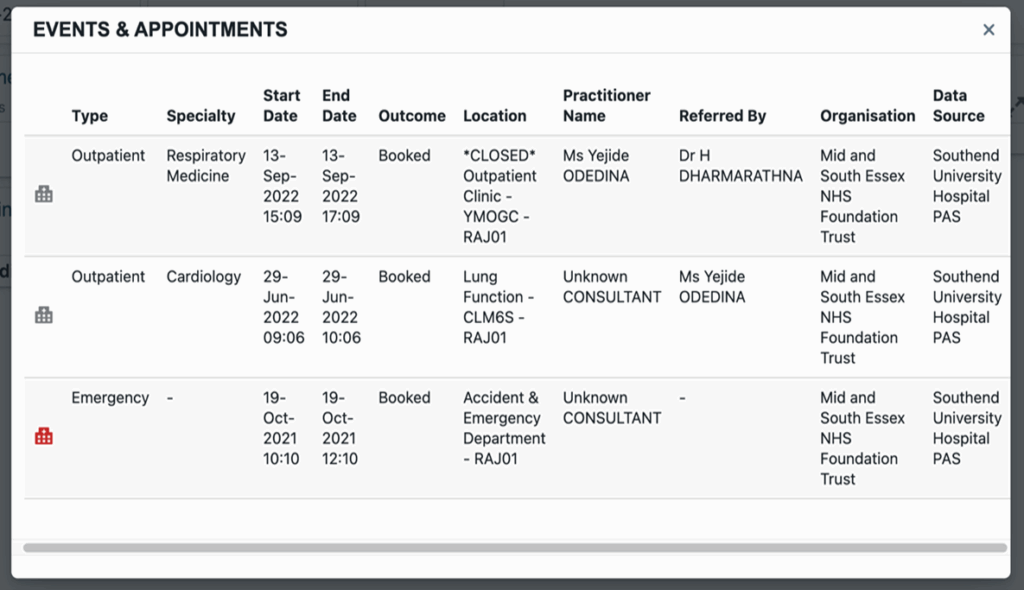
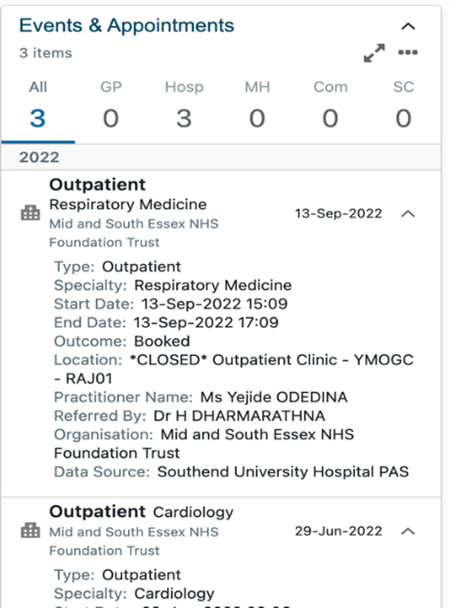
In the expanded view, additional details such as type, outcome, location, and practitioner information are shown for each event or appointment.
Disabilities affecting care card
Displays information about disabilities that may impact the person’s care. Details include the type of disability and its onset date.

Provisions card
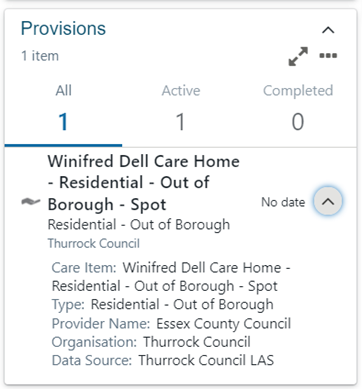
Displays information about the care provision currently in place, including the type of service, provider name, and status (active or completed).
Care network dashboard cards
Personal contacts card
Displays key personal contacts, including family members, legal contacts, and personal relationships. Information provided includes names, relationships, and relevant details like addresses and parental responsibility. Click on the type of contact and number to filter (e.g. family, legal).
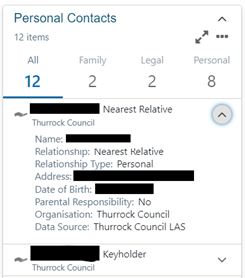
Southend City Council adult social care data: Most professionals are included, but some details, such as those for occupational therapists, are not yet available.
Professional contacts card
Displays professional contacts involved in the person’s care. This card includes important details such as organisation, team, and role.

Dashboard card icons
Reload dashboard icon:
You can refresh the dashboard cards by selecting the reload dashboard icon at the top right-hand side of the screen.
Collapse all icon:
You can hide information within the dashboard cards by selecting the collapse all icon at the top right-hand side of the screen.

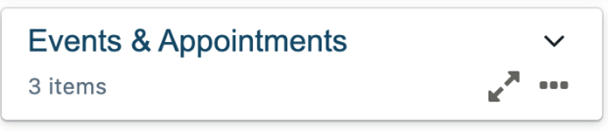
Expand all icon:
You can expand all information within the dashboard cards by selecting the expand all icon at the top right-hand side of the screen.

Compact and comfortable view
The dashboard cards can be viewed in comfortable or compact view.
Compact view:
By selecting the compact view icon at the top right-hand side of the screen, will display the dashboard cards in a compact view as per example below.

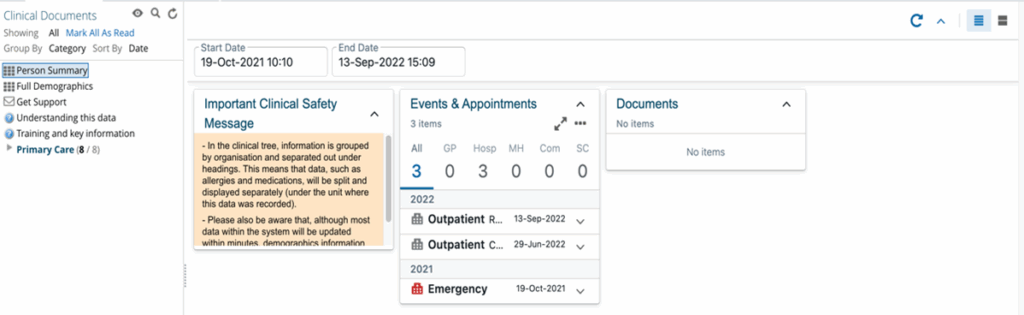
Comfortable view:
By selecting the comfortable view icon at the top right-hand side of the screen will display the dashboard cards in a comfortable view, displaying all information within the dashboard cards.

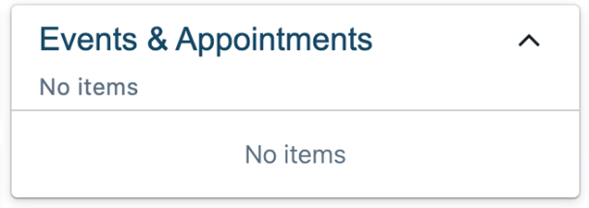
No item
If a dashboard card has no information to show, the card will still be present but will have no information populated.
Dashboard card features
View as table
The expand (double diagonal arrow) displays the dashboard as a table
View as a table icon
The table opens in a separate pop-up window.
View mode
You can also change the view mode for a dashboard card individually by selecting the three dots.

There are three view mode options to choose from: compact view, comfortable view, and expanded view.

Compact view:

Comfortable view
Expanded view
Additional resources
- Further information: https://midandsouthessex.ics.nhs.uk/sharedcarerecord
- Contact information for feedback: [email protected]